
Download SynergyOSX – Cross‑Platform Keyboard & Mouse Sharing Tool
Introduction: Why SynergyOSX Matters for Multi‑Device Workflows
In today’s mixed‑environment offices, professionals often hop between Windows PCs, macOS workstations, and even Linux laptops without a moment’s pause. Managing separate keyboards and mice for each machine can quickly become a cluttered, inefficient nightmare. That’s where SynergyOSX steps in. Built as a native macOS graphical front‑end for the open‑source Synergy project, SynergyOSX delivers a seamless, secure, and free solution for sharing a single keyboard and mouse across any number of computers, regardless of their operating system.
The core idea is simple yet powerful: move your cursor to the edge of one screen, and it instantly “jumps” to the next machine, taking the keyboard with it. Clipboard contents travel with the cursor, letting you copy on a Mac and paste on a Windows PC without a hitch. Even screensavers and lock‑screen passwords stay in sync, so you never have to remember multiple credentials when stepping from one workstation to another.
For video editors juggling a high‑performance Mac for rendering and a Windows PC for color grading, for developers testing code on both Linux and macOS, or for any power user who prefers a clean desk, SynergyOSX eliminates the need for bulky KVM switches or expensive proprietary hardware. Its lightweight design runs in the background, consumes minimal resources, and can be configured in minutes. The result is a more fluid workflow, reduced desk clutter, and a professional edge that lets you focus on creation rather than peripheral management.
Features, Compatibility, and System Requirements
- True cross‑platform support: Windows, macOS, Linux, and Raspberry Pi.
- Secure encrypted connections (AES‑256) to protect keystrokes and mouse data.
- Unified clipboard that synchronizes text, images, and file paths.
- Automatic screen‑saver and lock‑screen synchronization across all connected devices.
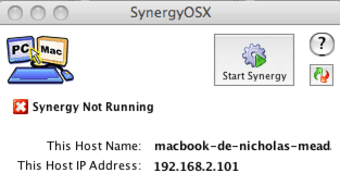
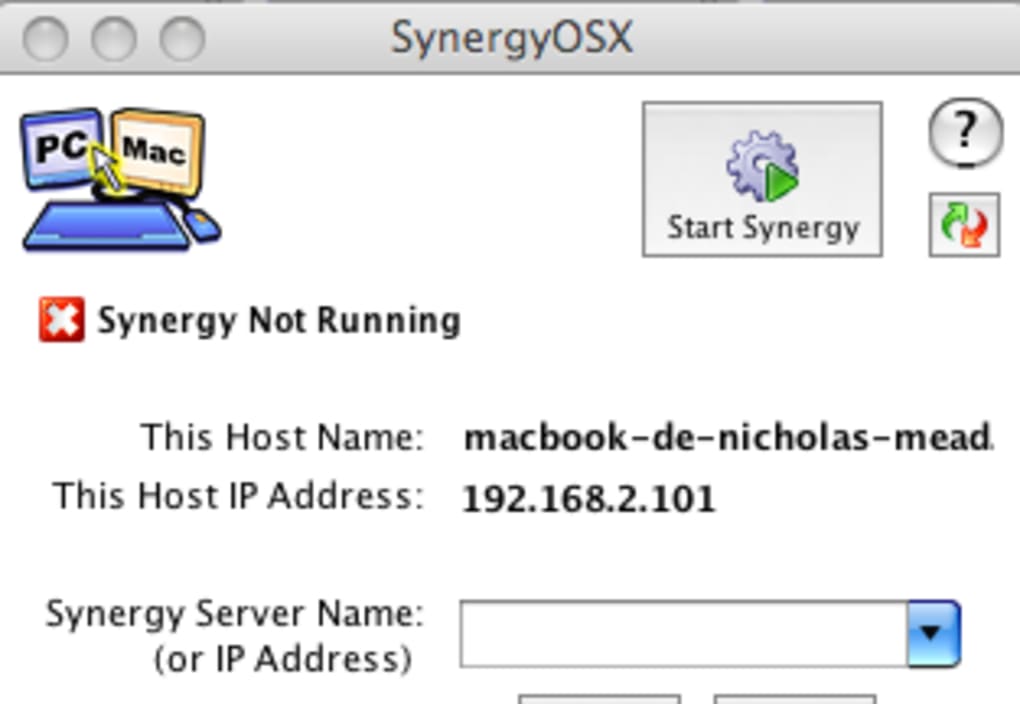
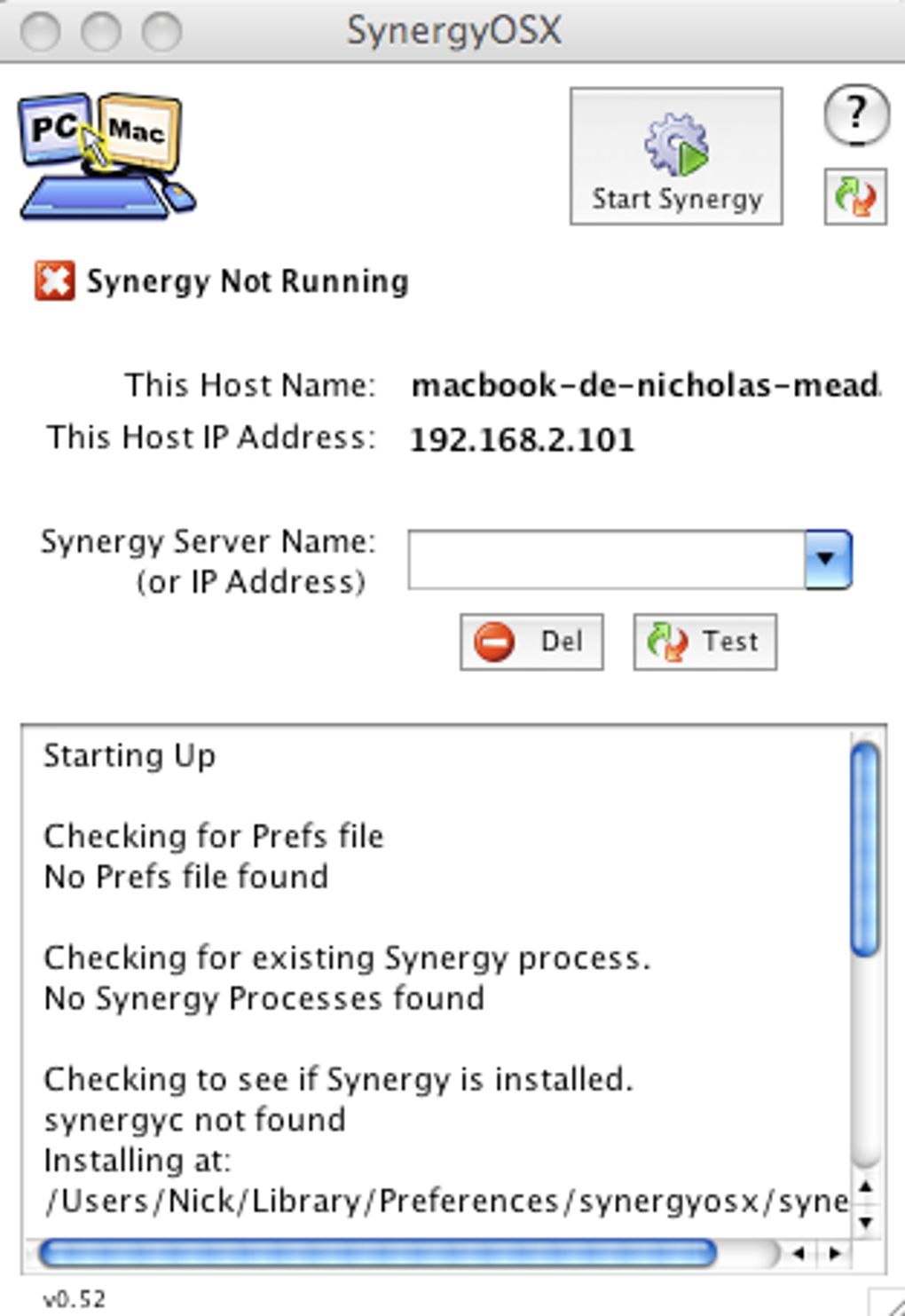
- Intuitive macOS GUI for server and client configuration, eliminating command‑line complexity.
- Hotkey to lock cursor movement (Scroll Lock) for privacy or focus on a single machine.
- Drag‑and‑drop screen layout editor for arranging monitors in any order.
- Open‑source core with regular community‑driven updates and bug fixes.
Supported Operating Systems
- macOS 10.13 (High Sierra) and later – required for the GUI front‑end.
- Windows 7, 8, 10, 11 – works as a client or server when paired with the Synergy engine.
- Linux distributions with X11 or Wayland support – client mode only.
- iOS and Android devices can act as clients via third‑party apps that speak the Synergy protocol (optional).
System requirements are modest: a 64‑bit processor, at least 200 MB of free RAM, and a stable network (wired Ethernet or reliable Wi‑Fi). Because the application uses a lightweight daemon for communication, it adds virtually no overhead, making it ideal for both high‑end workstations and modest laptops.
Installation, Configuration, Daily Use, and Pros & Cons
Step‑by‑Step Installation
- Download the latest SynergyOSX installer for macOS (DMG file).
- Open the DMG and drag the SynergyOSX app into your Applications folder.
- Launch the app; macOS will prompt you to allow network access – grant permission in System Settings → Security & Privacy.
- When prompted, install the underlying Synergy core (the installer handles this automatically).
- Restart the application to load the GUI.
Configuring Your Network
Choose one computer to act as the Server – typically the machine with the keyboard and mouse you wish to share. In the SynergyOSX GUI, click “Set as Server,” then use the built‑in screen layout editor to drag and position each client monitor relative to the server’s display. Each client computer needs the Synergy engine installed (available for free on Windows and Linux). On the client, select “Set as Client” and enter the server’s IP address or hostname.
Everyday Workflow
Once connected, moving the cursor off the right edge of your Mac’s screen will instantly place it on the adjacent Windows PC, and the keyboard follows. Copying a file path on the Mac will place it in the Windows clipboard, ready to paste. If you need to prevent accidental cursor jumps, toggle the Scroll Lock key – SynergyOSX will freeze the pointer until you release it.
Pros and Cons
- Pros
- Free and open‑source core, no subscription fees.
- Native macOS GUI makes setup painless for non‑technical users.
- Strong encryption ensures secure data transmission.
- Unified clipboard saves time copying between platforms.
- Low resource usage, ideal for older hardware.
- Cons
- Requires manual IP configuration on some networks without DHCP.
- Advanced features (e.g., SSL certificates) may need command‑line tweaks.
- No built‑in file‑transfer capability – only clipboard sharing.
- Initial client installation on Windows/Linux is separate from the macOS GUI.
Frequently Asked Questions
Is SynergyOSX really free?
Yes. The macOS front‑end and the underlying Synergy engine are released under the GPL‑v2 license, meaning you can download, use, and even modify the software at no cost.
Can I use SynergyOSX over Wi‑Fi?
Absolutely. As long as all devices are on the same local network and have reliable latency (< 30 ms is ideal), Wi‑Fi works perfectly for cursor and clipboard sharing.
How secure is the data transferred between machines?
SynergyOSX encrypts all traffic with AES‑256 by default, protecting keystrokes and clipboard data from eavesdropping on the local network.
What if my screen layout changes frequently?
The GUI includes a drag‑and‑drop editor that lets you quickly rearrange monitors. You can also export and import layout files for different workstations.
Do I need admin rights to install SynergyOSX?
Yes, installing the core service requires administrator privileges on macOS, Windows, or Linux. Once installed, everyday use does not need elevated rights.
Conclusion: Streamline Your Multi‑Device Workspace Today
SynergyOSX offers a polished, free, and secure way to unify your keyboard and mouse across disparate operating systems. By eliminating the need for multiple peripherals, it not only declutters your desk but also speeds up everyday tasks like copying files, switching between editing suites, or testing code on different platforms. The intuitive macOS interface lowers the barrier for non‑technical users, while the underlying open‑source engine ensures continuous community support and updates.
Whether you’re a video editor, a software developer, or simply someone who works on both a Windows PC and a Mac, adopting SynergyOSX can transform the way you interact with your machines. Ready to boost productivity and enjoy a cleaner workspace? Download SynergyOSX now and experience seamless cross‑platform control in minutes.







